October 2025 Updates
Setting the reputation value for your league is a crucial step in accurately assessing player performance across different competitions. League reputation provides a quantifiable measure of the overall quality and competitiveness of a league, which directly influences how players are likely to perform when moving between leagues of differing calibre. By defining your league's reputation, you establish a reference point that the system uses to calculate league multipliers. These multipliers adjust a player's expected performance, reflecting the reality that a player transferring from a lower reputation league may struggle to replicate their previous statistics in a higher reputation competition, and conversely, a player moving to a lower reputation league may outperform their expected metrics.
Incorporating league reputation ensures that the evaluation of player performance is contextualised rather than absolute, taking into account the relative strength of the competition. This allows for more informed decisions when scouting or transferring players, as the multipliers derived from a reputation matrix provide an evidence-based estimation of how a player's statistics might translate in a new league environment. It also helps in standardising comparisons between players from leagues of varying reputations, reducing the guesswork and subjectivity often involved in cross-league assessments.
To assign a reputation value to another league, navigate to the Add League Multipliers dialog then click on the Add/Edit Your League Reputation button above the list of league multipliers. This will open a dedicated dialog where you can specify your league's reputation using one of two approaches: by selecting a star rating that provides a visual approximation of the league's standing, or by entering an exact numeric reputation value for precise control. Once set, this reputation value integrates with the multiplier calculation, allowing the system to automatically derive realistic league multipliers for other leagues with reputation values based on the relative quality of a selected league and your own.
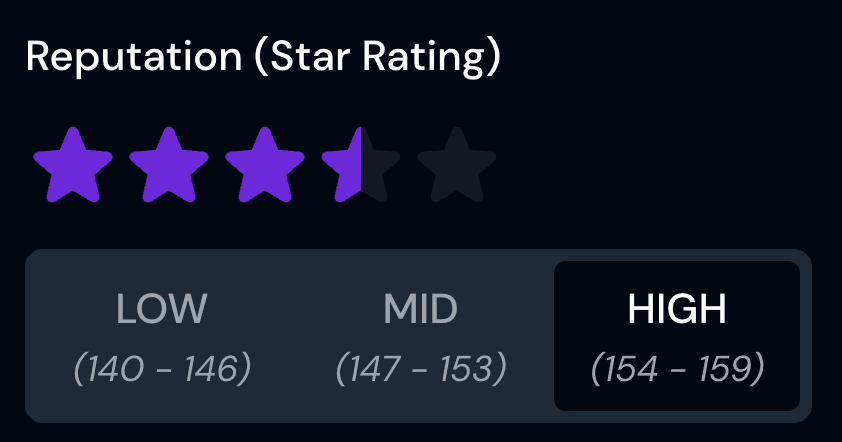 Add a star rating for your league
You can select the star rating that represents the reputation of your league.
Once chosen, you can refine its reputation further by using the tabs located beneath the star rating to decide whether the league should fall into the low, mid or high band when compared with others of the same reputation rating.
Selecting a 5 star rating will always set the reputation value to 200. Within Football Manager, 200 is the minimum reputation value for a 5 star reputation league. A reputation value of 199 would be a defined as a 4.5 star rating in-game.
A 4.5 star rating is a unique case, as it represents a very specific range of reputation values.
In-game, you typically see this represented as a range of 180 to 185, not 180 to 199. That's not to say that a domestic league can't exceed a reputation value of 180, but for realistic purposes, it's best to keep it within that range, therefore, when selecting a 4.5 star rating, the reputation ranges for low, mid & high will be between 180 and 185.
Within each tab for the star rating range, you can view the corresponding reputation figures (out of 200) to better understand the league's relative strength.
Selecting a star rating will also update the reputation number input automatically, ensuring that the reputation value and star rating remain consistent.
This process provides a structured method for establishing reputation values that directly influence how multipliers are calculated between different competitions. By setting an accurate reputation for your own league, the system can determine how player statistics should be adjusted when comparing across multiple competitions. The refined low, mid and high range selection ensures that two leagues with the same reputation star rating can still be distinguished from one another in terms of competitive strength. This additional granularity helps produce more precise multipliers, which in turn leads to more realistic scouting analysis when assessing players from varying league environments.
Select a Star Rating that represents the reputation of your league, then select low, mid or high to refine the league's standing within that rating. The Reputation input will update to match the selected star rating.
Below, you will find the Reputation Ranges associated with each star rating. These ranges can be used to guide you in selecting the most appropriate reputation value for your league.
Each star increment represents a band of possible reputation values rather than a fixed figure. By examining where your league falls within its star category, you can make a more precise judgement on whether it should be considered within the low, mid or high portion of that range.
Reputation values are inherently dynamic in Football Manager and can shift season by season. While the star rating itself provides a convenient visual indicator, these ranges give you the necessary structure to anchor your input with greater accuracy, particularly when aligning league multipliers across multiple competitions.
Reputation Star Ranges
- 1 - 39(Poor)
- 40 - 59(Below Average)
- 60 - 79(Average)
- 80 - 99(Decent)
- 100 - 119(Fairly Good)
- 120 - 139(Good)
- 140 - 159(Impressive)
- 160 - 179(Excellent)
- 180 - 185(Superb)
- 200(Elite)
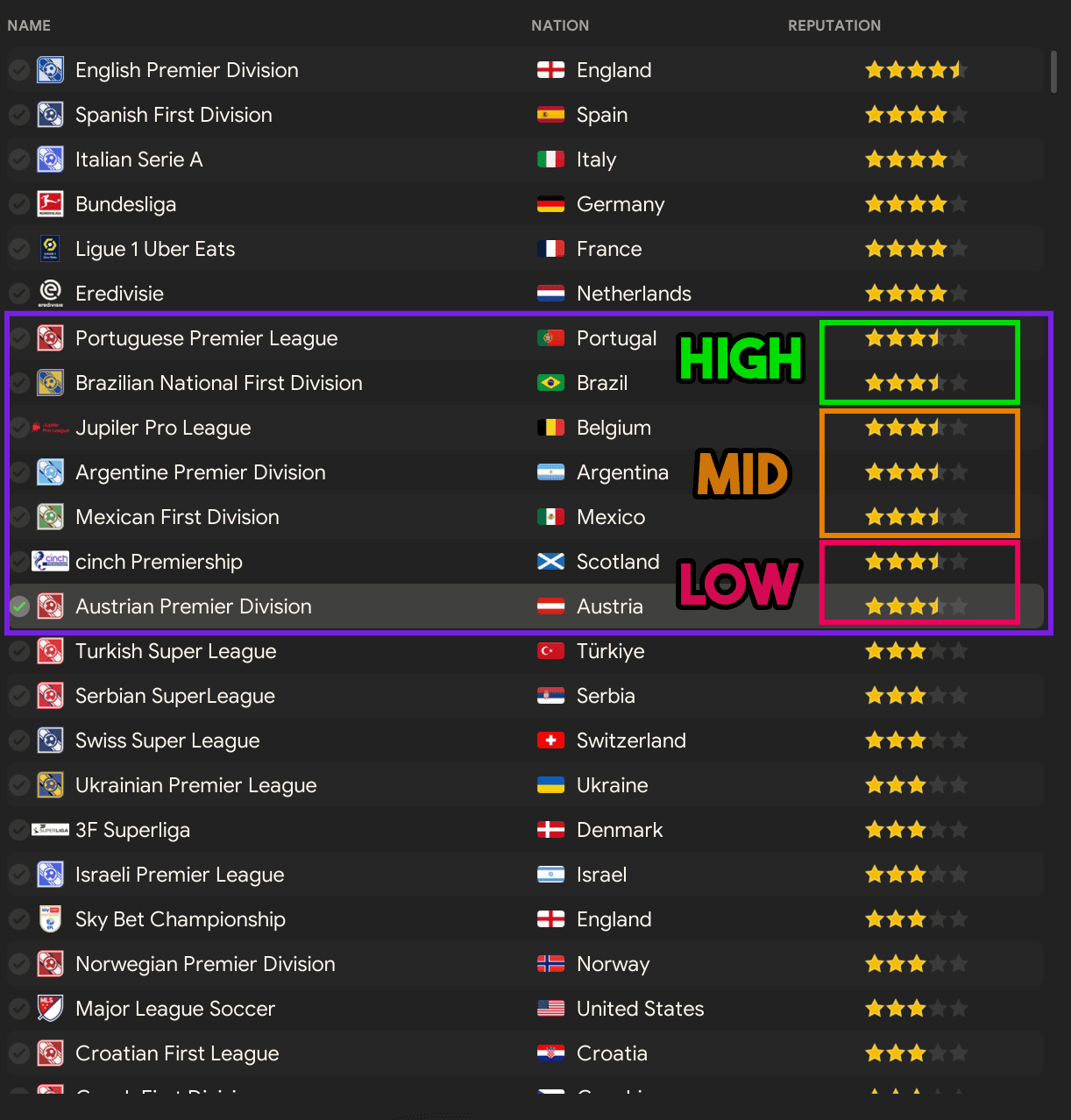 How to find your leagues star reputation
In Football Manager, you can view a global ranking of leagues sorted by reputation. To access this screen, click the Globe icon in the top right corner of the screen. Once the dialog opens, select the World tab along the top. In the General section on the left-hand menu, click on Rankings. You will be taken to a new screen where you should hover over the Competitions tab and select Leagues.
This will display a comprehensive table of leagues across the world, organised by reputation. You can then locate your league within the table. The league's star rating is displayed within the Reputation column.
This table is also useful for assessing whether the league should be considered within the low, mid or high range compared with other leagues of the same star rating.
It is important to note that you should avoid attempting to re-sort this table in Football Manager. Even if you try to sort by the star ratings, the order does not reliably correct itself. For example, Italian Serie A and German Bundesliga both share the same reputation rating, the German Bundesliga is displayed ahead of Italian Serie A by default, but when you sort, it reverses. The only known way to reset this ordering is by clearing the cache, which unfortunately also removes any saved custom views and adjustments you may have made.
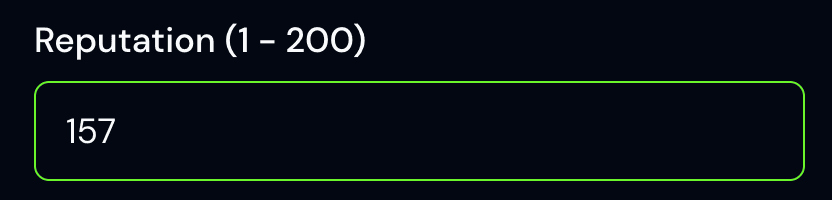 Add a reputation rating for your league
The reputation of your league is a crucial indicator of its perceived strength and prestige within Football Manager.
If you have the in-game editor installed and active in your save, you can access this precise value and input it directly into the reputation number field. This ensures accuracy and provides immediate alignment with the star rating scale.
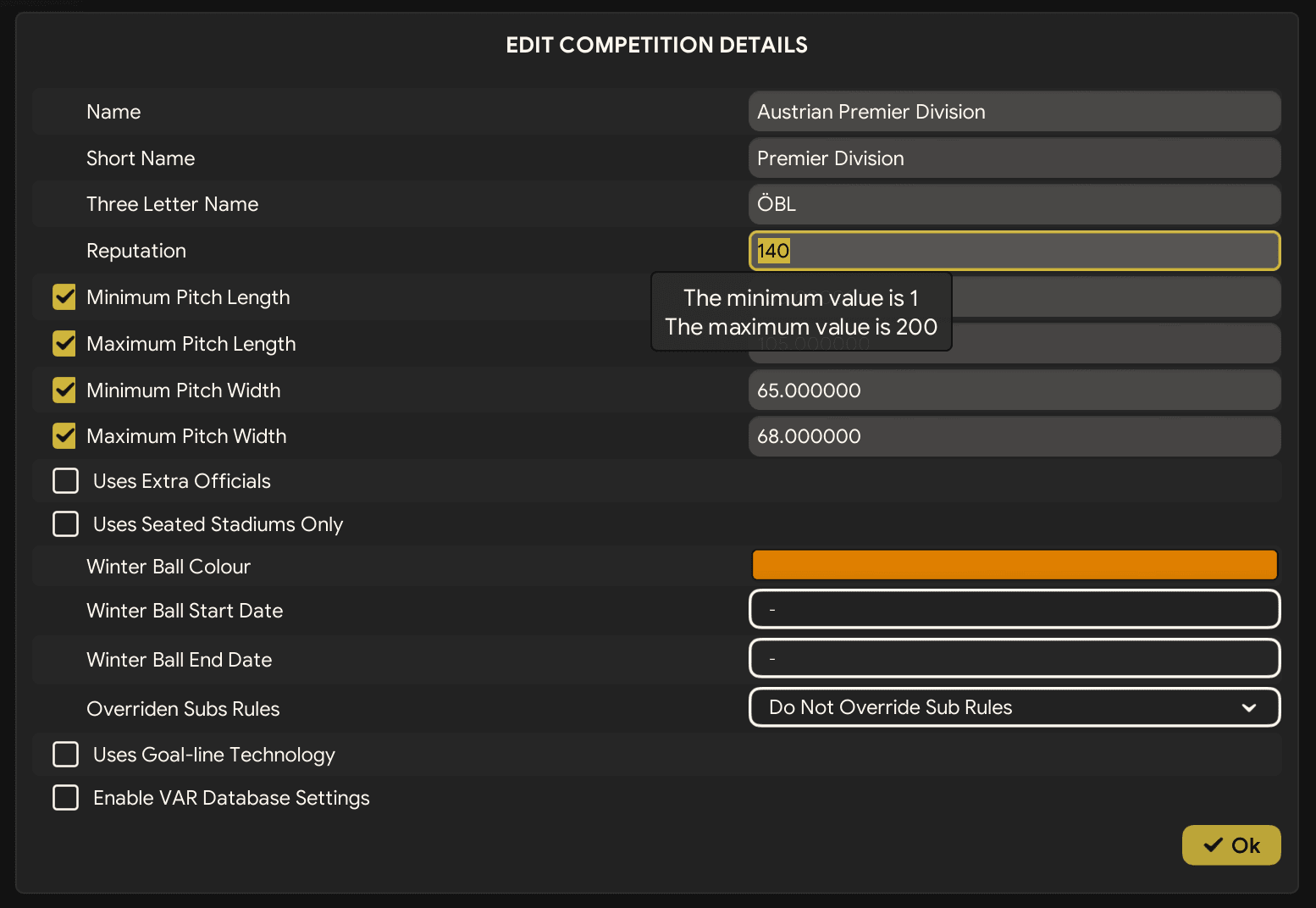 How to find your league's reputation using the Pre-Game Editor
To obtain the exact reputation figure for your league, you may use either the In-Game Editor or the Pre-Game Editor (note that the Pre-Game Editor is only accurate at the start of a save in the 1st season).
To view the reputation figure for your league with the In-Game Editor, follow these steps:
- You will need to have the In-Game Editor purchased and enabled in your save. Without this, you will not be able to view the reputation figure for your league.
- Navigate to your league screen within Football Manager.
- Then click on the In-Game Editor icon located in the top right corner.
- This will open the "EDIT COMPETITION DETAILS" dialog window. Within this dialog, you will find the reputation figure for your league displayed in the "Reputation" field.
- Once identified, enter this value into the "Reputation" number field.
 How to find your league's reputation using the In-Game Editor
You may also use the Pre-Game Editor to identify the reputation figure for your league.
The Pre-Game Editor only provides reputation figures at the start of a save in the 1st season. Since reputation is dynamic and subject to season-to-season change, these figures will become outdated once your save progresses beyond the opening season. Exercise caution when relying on this method.
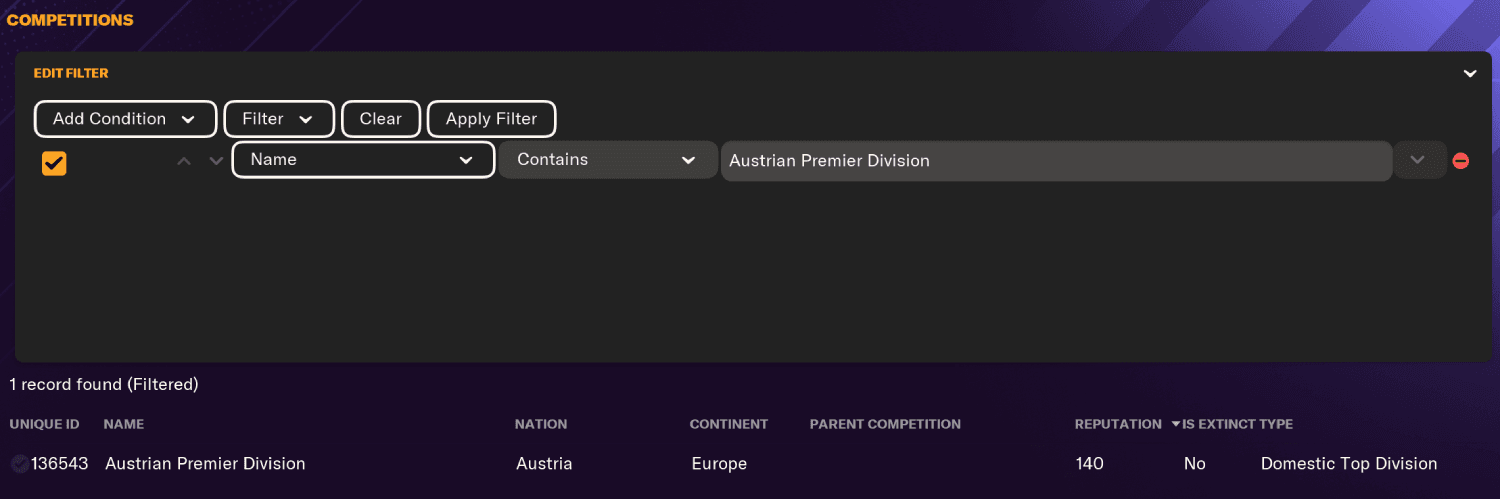
To extract the reputation figure using the Pre-Game Editor, follow these steps:
- Open the Pre-Game Editor.
- Within the left-hand panel, locate the "DATABASE" section and select "Competitions".
- Search for your league.
- Click the Add Condition button.
- From the dropdown, select the "Name" option.
- Enter the name of your league in the input field. This field provides auto-complete suggestions to assist in locating the correct competition.
- Click the Apply Filter button.
- For your league in the resulting table, the reputation figure will be displayed in the "REPUTATION" column.
You may also use the pre-game editor to identify a league's starting reputation value, although this will only reflect the 1st season. Reputation is not static, it evolves from season to season. For long-term accuracy it is advisable to re-check this value periodically if you wish to maintain precision in your analysis.
You can enter any whole number into the reputation number field between 1 and 200.
Inputting a value will automatically synchronise with the star rating system, ensuring that both visual and numerical representations remain consistent.
Once you have entered the desired reputation value for your league, you can save these changes to persist across the Moneyball tool.
The reputation value you assign here plays a central role in FMDataLab's comparative system. It is used to measure how the standing of your league relates to other competitions, allowing the tool to establish balanced and realistic multiplier values across leagues of varying reputations.
You have 2 options of saving your league reputation: Save and Save & Update.
When you select Save & Update, the system will not only store the reputation value for your league, but will also refresh and recalculate all leagues multipliers already entered in your dataset with a defined reputation value. This process ensures that any existing leagues with a pre-defined reputation value are automatically realigned in proportion to the updated reputation figure of your league. It also initiates a complete recalibration of all Statistic Group Multipliers so that their values remain synchronised with the overarching reputation of the league as a whole, even if they were previously set to differ..
Leagues that do not yet have an assigned reputation value will remain unaffected and will not be altered during this update process.
When you select Save, only the reputation value for your league will be recorded. This action does not modify or influence the reputation or multiplier figures for any other leagues already stored within the system.